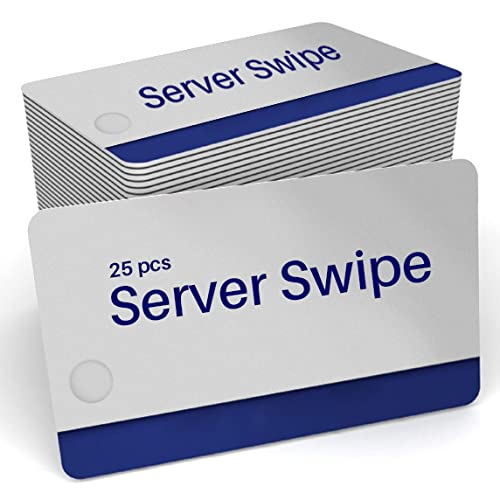

Details on how to enroll an employee card Directions to Change or Create an MICROS Employee ID Card on MICROS 3700 Workstation: 1) Sign in as a Manager 2) From the Manager Screen, click on the Manager Procedures button. 3) F...

Buy Now From Amazon

Product Review

Details on how to enroll an employee card Directions to Change or Create an MICROS Employee ID Card on MICROS 3700 Workstation: 1) Sign in as a Manager 2) From the Manager Screen, click on the Manager Procedures button. 3) From Manager Procedures, Click on the Employee Button. 4) Use the link to find the employee record. 5) Touch the employee name to select. 6) Click on the Edit ID link to bring up the Assign an ID Screen. 7) Swipe the card through the workstation mag card reader at this point. The number from the card will auto fill into both fields. 8) Click the OK button to save. 9) Click the X in the upper right hand corner to close Manager Procedures

  • 𝟮𝟱 𝗠𝗜𝗖𝗥𝗢𝗦 𝗦𝗘𝗥𝗩𝗘𝗥 𝗦𝗪𝗜𝗣𝗘 𝗖𝗔𝗥𝗗𝗦: Work with all Oracle or Micros Systems
  • 𝗛𝗢𝗟𝗘 𝗣𝗨𝗡𝗖𝗛𝗘𝗗
  • 𝗣𝗥𝗢𝗨𝗗𝗟𝗬 𝗠𝗔𝗗𝗘 𝗜𝗡 𝗧𝗛𝗘 𝗨𝗦𝗔
  • Thousands of users

Similar Products

25 Pack of Orange Micros Manager or Server ID Cards - Card Imaging Brand POS Cards100 Micros Server Swipe Employee Cards100 Micros Server Swipe CardsGorilla Supply Ink Ribbon ERC 30 34 38 B/R Compatible for ERC38 NK506 (12-PK, Black Red)10 Pack - Premium Retractable ID Badge Reels with Key Ring, Silver Sticker and Belt Clip - For ID Badges, Flash Drives, POS Swipe Cards and More by Specialist ID (Black)myCartridge 24 Pack ERC30 ERC-30 ERC 30 34 38 B/R Compatible with Ribbon Cartridge for use in ERC38 NK506 (Black Red)NCR 856348 Thermal Receipt Paper, 3-1/8" x 230' White (50 Rolls)Restaurant Check Presenters - Guest Check Card Holder with Gold Thank You Imprint - 5.5" x 10" (Black 20 Pack)100 Micros Server Swipe Cards + 20 Alcohol Cleaning Cardsselizo 12 Packs Retractable ID Badge Card Holder Carabiner Badge Reel with Belt Clip and Key Ring, Assorted Colors