
Product Review
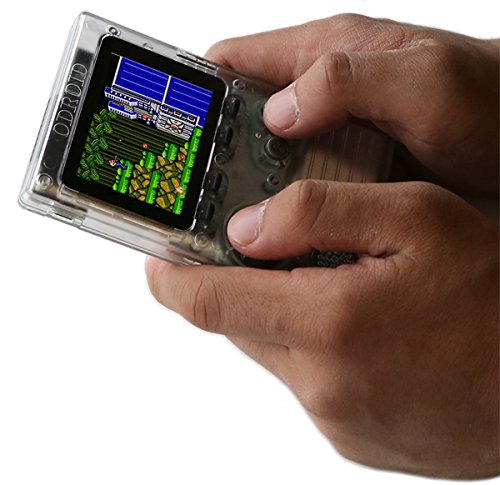
How to use game emulators Insert that prepared SD card into your ODROID-GO and turn on the power. It will show red icons when; - A card could not be detected. Ensure the card is properly inserted. - Files are not properly written to the SD card, or its contents are corrupted. Then the Emulator imports the games automatically so that you can play them right away. Menu Left/Right - select game system to emulate. A - show available ROM for the emulator selected. B - returns to a previously active ROM. ROM Selection Up/Down - select a file. Right/Left - change the page of displayed files. A - select a file. B - return to Main Menu. After selecting a file, a progress bar will be displayed. The blue gauge shows erase progress while the green gauge shows flash progress. Emulation begins after the green gauge is full. General Emulator Controls Menu - save game and return to Main Menu. Power Switch Off, Hold Start, Power Switch On, Release Start when game appear - Reset game Power Switch Off, Hold Menu, Power switch On, Release Menu when Main Menu appears - Force exit emulator or recover from a non-responsive emulator. NES, Gameboy, and Gameboy Color Controls Up, Down, Left, Right, A, B, Select, Start Sega Master System Controls Up, Down, Left, Right A - Button 1 B - Button 2 Select - Pause Game Gear Controls Up, Down, Left, Right A - Button 1 B - Button 2 Start System Controls Volume - change volume level: Mute, Low, Med, High Start + Up/Down - change LCD brightness: Lowest, Low, Medium, High Menu - Hold for 2 seconds to sleep. Press Menu again to wake. Blue LED - Solid when game is being saved and blinking when battery is critically low.


