
Product Review
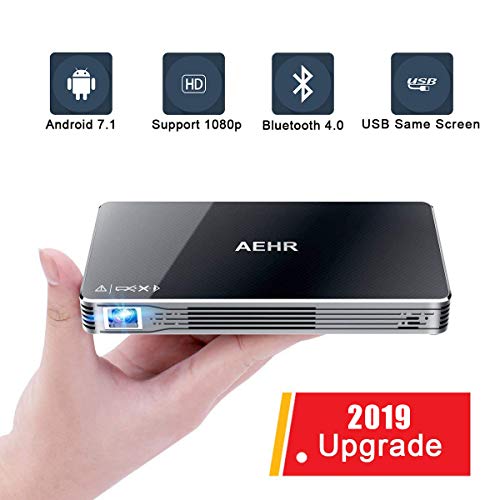
Notice: HappyCast is Chinese, don't worry about that. You only need to open the happy cast app. You don't need to do anything with this app. Just make sure that the iPhone and the projector are connect to the same WIFI signal , then the iPhone can directly use the airplay to mirror screen. How to mirror iPhone/iPad screen ã€wired Just use your iPhone/iPad data cable to connect the projector and your iPhone/iPad to the same screen ã€wireless】 1. Make sure your iPhone and your projector are connected to same WIFI 2. Update HappyCast to the latest version (1) Turn on HappyCast on the projector's desktop, it will automatically detect and update (2) If you want to manually update HappyCast, you can open HappyCast and Press the Setup button with the remote control, select Settings -> Version Update 3. Turn on HappyCast on the projector and open Airplay on your Apple device to search for the device and select the device to project 4. Close Airplay to disconnect How to connect to an Android device? 1. Make sure your Android device is connected to the projector with the same WIFI 2. Turn on WIFI DisPlay on the projector, and Open MultiScreen on Android device, search for mobile device on projector, and press enter button 3. Close MultiScreen to disconnect. Product specification ☆ CPU: quad-core 1.4GHz processor ☆ Operating System: Android 7.1 ☆ Bulbs: OSRAM LED Lamp (over 30,000 hours) ☆ Brightness: 100 lumens ☆ Resolution: 840*480 ☆ Contrast: 2000:1 ☆ Lamp life: 30,000/hour ☆ Projection ratio: 4:3/16:9/16:10 ☆ Power supply: input AC100-240V, DC 5V 3A ☆ WIFI: 2.4G / 5G Dual Band WIFI ☆ TF card: up to 32G ☆ DDR: 1GB DDR3 ☆ Memory: 8GB Packing list ☆ 1 mini projector ☆ 1 remote control ☆ 1 power adapter ☆ 1 USB charging cable ☆ 1 tripod ☆ 1 user manual


